
Controls & dual screens
Gamepad
Every screen works with a controller, and its footer always lists the buttons that do something there.
| Button | Also accepted | Role |
|---|---|---|
| A | Enter, D-pad center | Confirm, open, grab / place |
| B | Back | Back, cancel, close. On Home: edit the selected game |
| X | Tools (in a save), File (on Home), Actions (Bank, multi-select) | |
| Y | Save data (in a save), Link (on Home), Mark (Bank) | |
| L / R | Previous / next box, page, pouch or section. Hold to repeat | |
| + (Start) | Menu | Menu for the selected Pokemon, Settings on Home |
| − (Select) | Multi-select, page turn on the second screen | |
| D-pad | Move the cursor |
PKForge uses the buttons as Android reports them. There is no remapping screen.
Touch
Touch works everywhere too. In boxes: tap to select, tap again to grab, tap the destination to place. Tapping an empty slot opens the add sheet. The ends of the box bar change box.
Dual-screen devices
On handhelds with a second screen (AYN Thor, AYANEO, Retroid, Anbernic and other devices exposing a second display), PKForge uses the lower screen as a companion:
| On the main screen | On the second screen |
|---|---|
| Home | The art of the highlighted game |
| A box, the Bank | The full inspector of the Pokemon under the cursor: Info, Stats, Moves, Origin, Legal |
| The summary | The box, to jump between Pokemon |
| Pokédex pickers | The Pokédex entry of the highlighted species |
| Poképark | The field journal |
| Dex Autopilot | The route map |
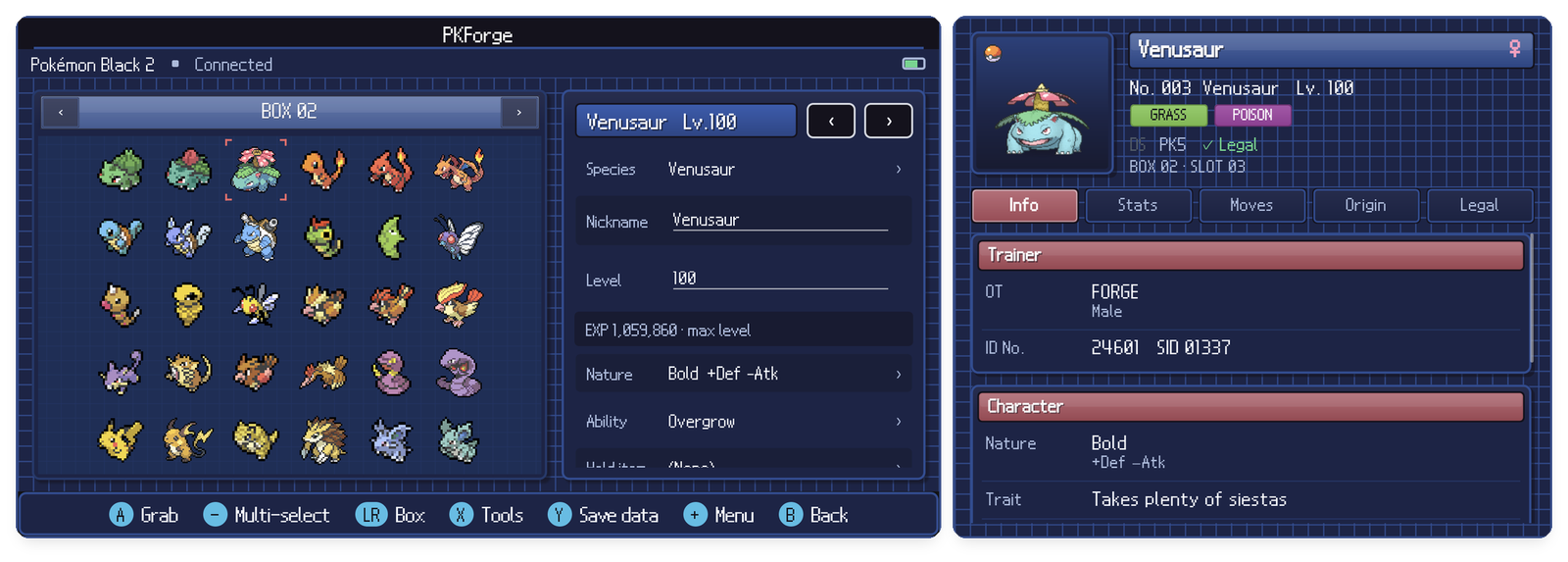
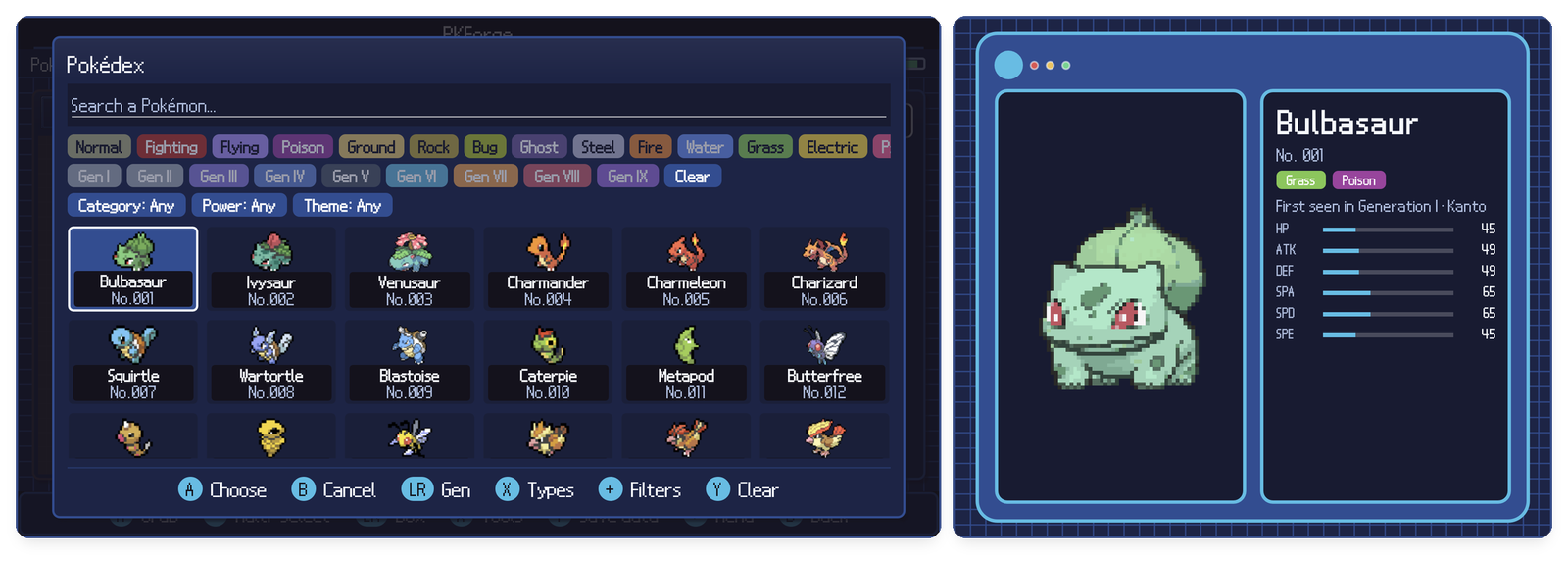
- Settings > Misc > Second screen: OFF keeps PKForge on one screen, for example to run an emulator on the other.
- If PKForge is launched on the lower screen, it moves itself to the main one.
- If the second screen fails to start, PKForge turns it off for the session and carries on with one screen.