
PKForge Quick Start
Follow the first-save-edit walkthrough: prepare a save, make an edit, save your changes and return to your game. Keep a separate backup before editing.
Your first edit
If you have not installed the app yet, get the APK from Download. For installation and first-launch details, see the wiki’s Getting Started article.
01 Prepare the save
- Save through the game’s own menu.
- Close the emulator so it cannot overwrite changes while you edit.
- Keep a separate copy of the save in a place you can find again.
PKForge edits the in-game save, sometimes called a battery save. A save state is the emulator’s snapshot of a running game and is not the file to edit.
02 Open a save
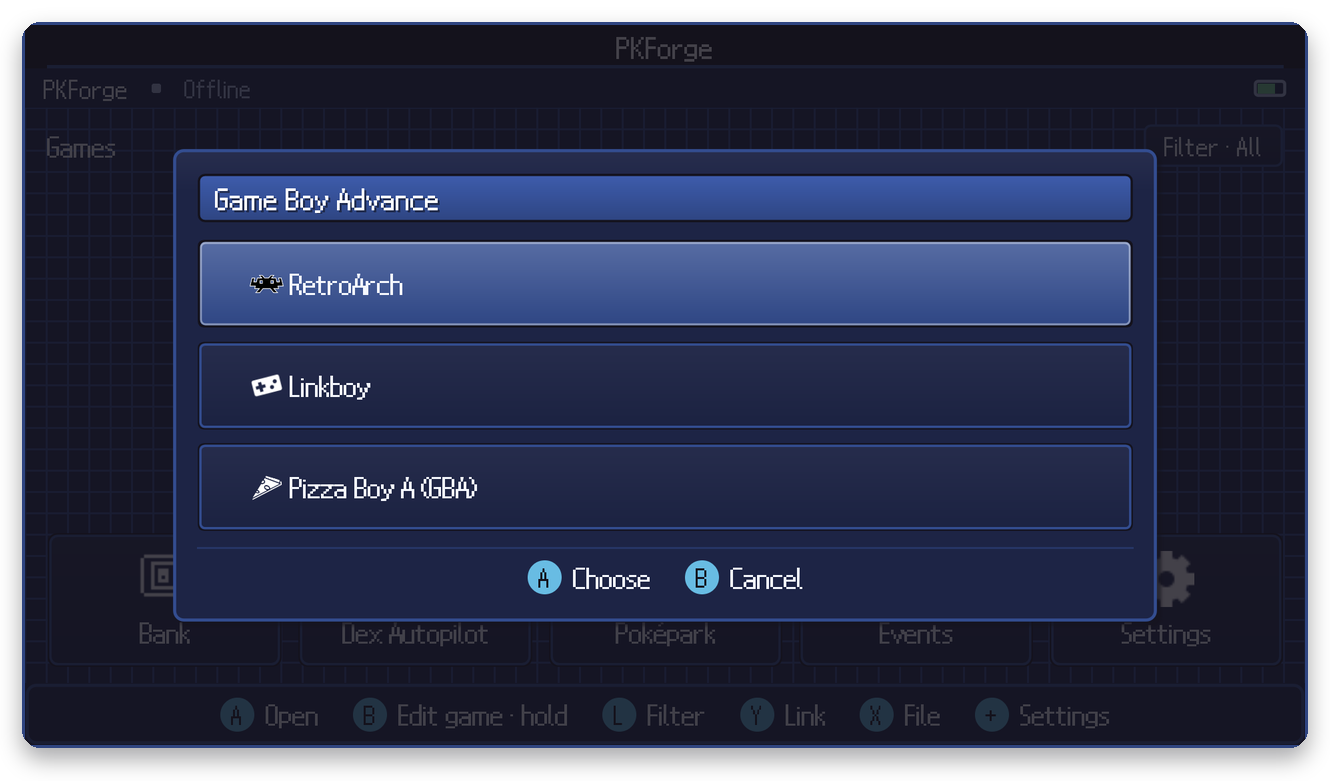
Link an emulator folder
Choose Link an emulator, select your emulator and grant access to the folder that holds its saves. Recognized saves appear on the Home shelf.
For RetroArch, use your device’s storage entry and select RetroArch/saves or its parent RetroArch folder. The RetroArch entry in the picker can point to internal app files instead.
Or open a single file
Use Open a single save file during setup, or File on Home. Pick an exported or copied in-game save. PKForge writes edits back to the selected file.
03 Edit and save
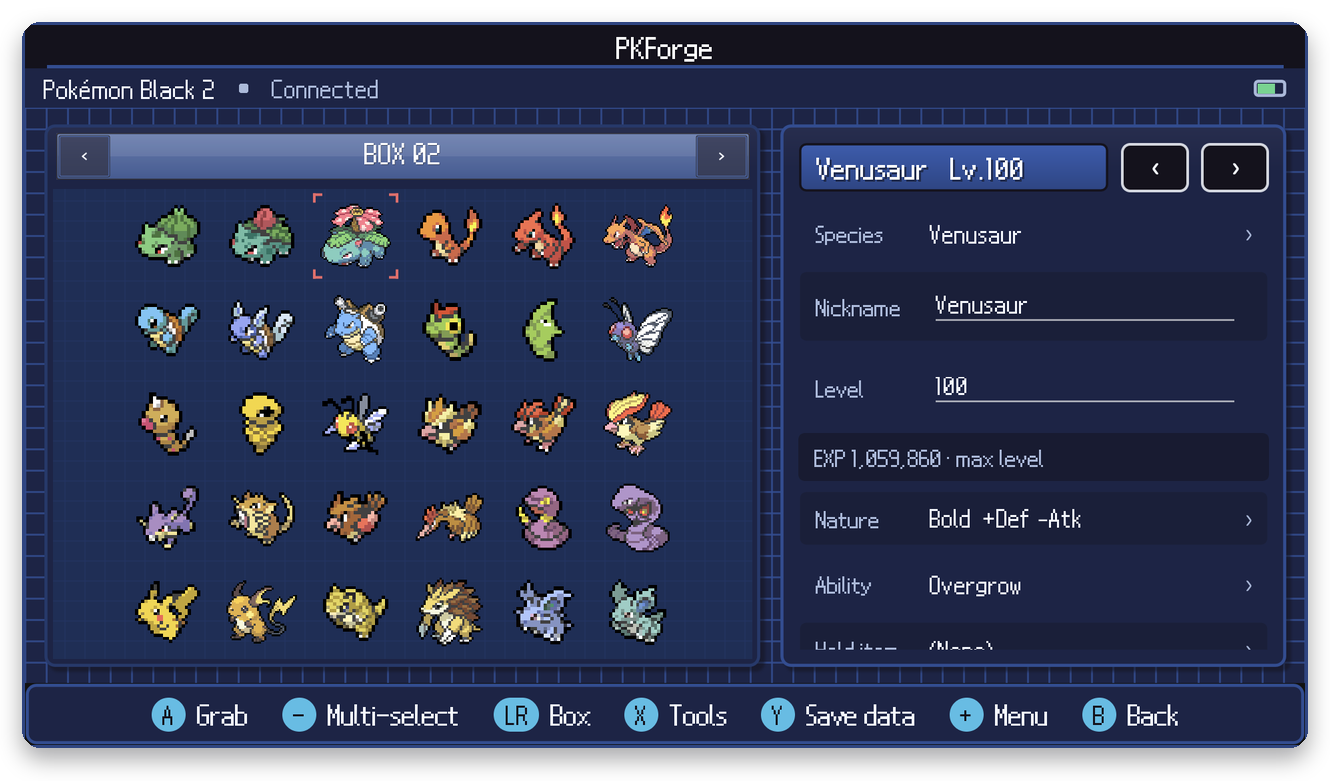
Open your save from the Home shelf and select a Pokemon. Choose a field in the editor, make the change you want, then use Save changes.
Available fields depend on the game. The screenshot shows part of the editor; scroll within the app to reach other fields and controls.
Legality checks describe whether a Pokemon matches the checker’s game data. They do not guarantee acceptance by online services or ban safety. Some ROM hacks have no ordinary legality verdict.
04 Return to the game
If you edited an exported copy, import that file back through your emulator. A linked save is edited in place.
Start the game normally. Do not load a save state made before your edit: it contains the old data and can undo the changes when the game saves again.
Using and backing up the Bank
The Bank stores Pokemon locally, outside your game saves. Send to Bank moves a Pokemon out of its save. Copy to Bank keeps the original there.
When sending to a game, read the transfer preview before confirming. Conversion can change attributes, and some species or items cannot exist in the destination.
Export your collection
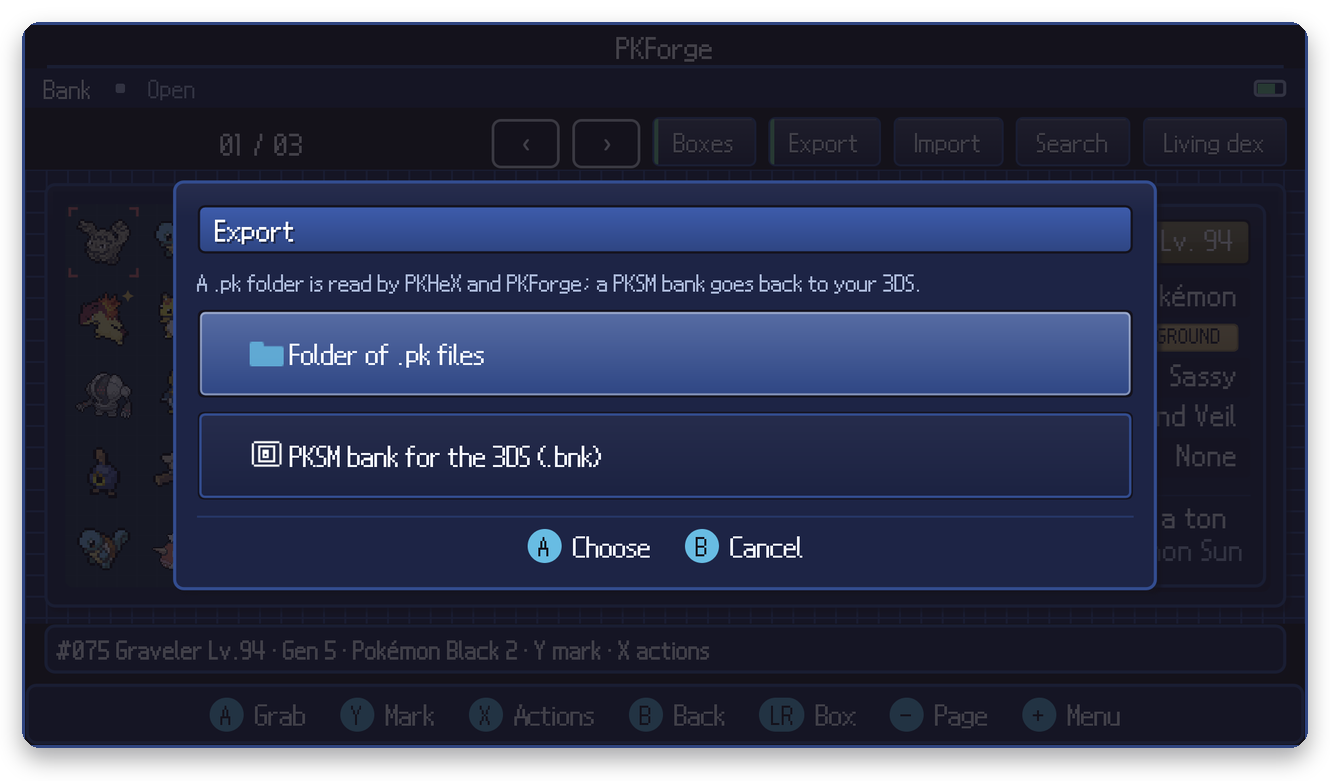
Open Bank → Export → Folder of .pk files and choose a location outside the app’s private storage.
Export before uninstalling PKForge. Uninstalling deletes the local Bank and restore points. A PKSM .bnk export is useful for PKSM, but omits formats it cannot hold, including Scarlet/Violet, BDSP and Legends Pokemon.
Restore points
PKForge validates edits and creates a restore point before writing a changed save. It keeps the latest 20 restore points in total across your saves. They do not replace your own backup copies.
To restore, open the correct save first, then use Settings → Restore points. Check the game name and time before confirming. The list contains entries from all your games, and restoration writes to the save currently open.
If your save is not found
- Check the folder. Link the folder holding in-game saves, not
statesorStateSaves. Some emulators save next to the ROM; others use a separate folder. - Check Android access. If Android hides the emulator’s folder, use the emulator’s save export and open the exported file instead.
- Rescan new saves. Use Settings → Misc → Rescan games. The scan report in the same settings area explains accepted or rejected files.
- Check the format. See save-file requirements, including GameCube memory-card limits and ROM hack restrictions.
For a problem you cannot resolve, share the scan report or use Settings → Misc → Share logs and describe what you were doing.